Getting Started — Creating a Tournament
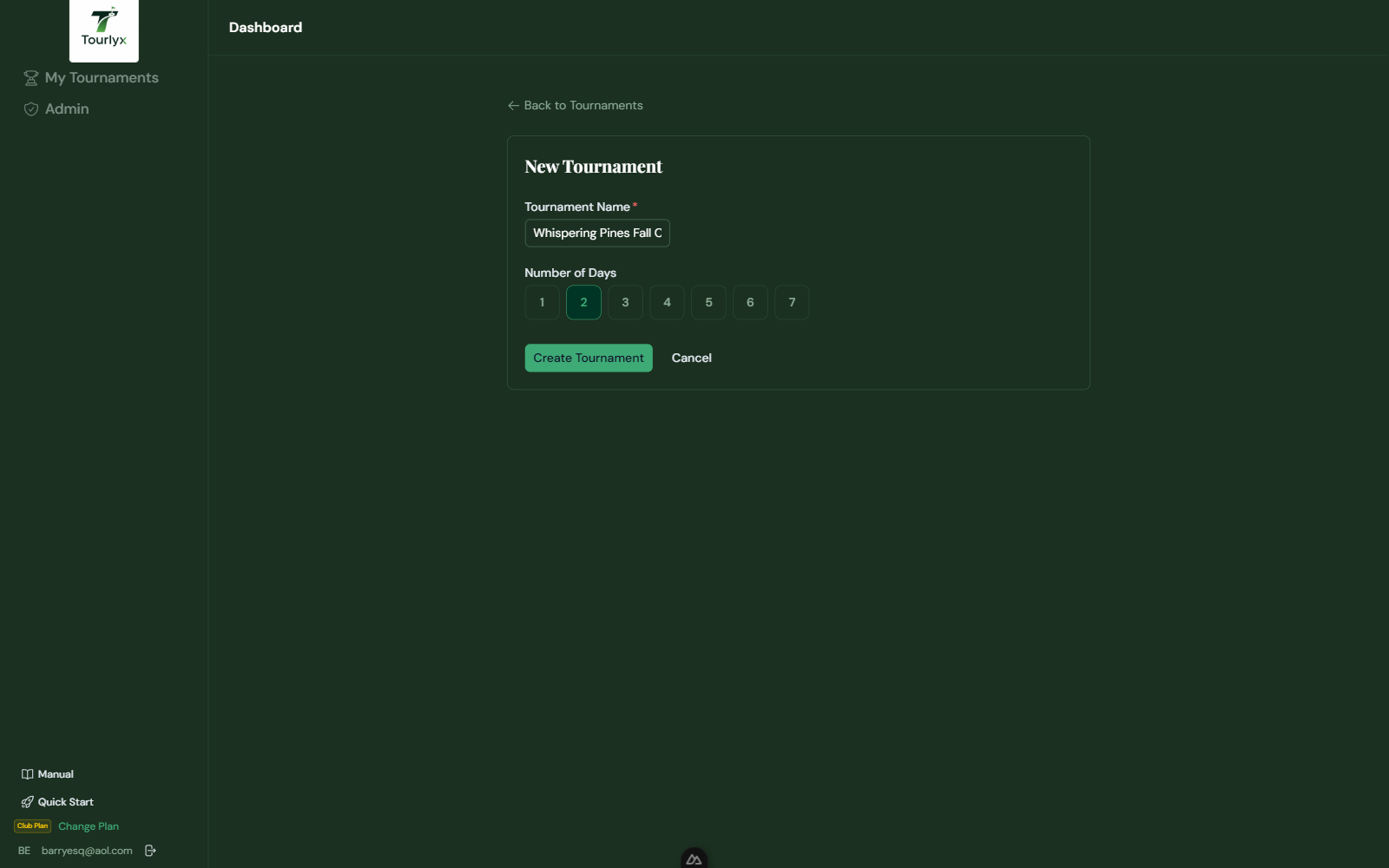
Every tournament in Tourlyx begins with a single action: creating the tournament record. This establishes your tournament’s identity and unlocks all subsequent setup steps.
How to Create a New Tournament
- From the dashboard, click the New Tournament button (green “+” card).
- Enter the Tournament Name — the only required field at this stage.
- Select the Number of Days (1 through 7). You can change this later in Setup.
- Click Create Tournament. You are automatically taken to the guided Setup Wizard (see below).
The Setup Wizard
New tournaments open directly into a guided, step-by-step Setup Wizard instead of the full all-in-one Setup page. Each step auto-saves as you type — a Saved indicator appears in the wizard sidebar once your changes are stored, so there is no Save button to click.
| Field / Option | Description |
|---|---|
| 1. Tournament Details | Name, director, host club, start date, number of days, and entry fee (flat or per day). |
| 2. Courses | Assign which course is played each day. Prompts you to add a course first if none exist yet. |
| 3. Side Games | Turn on and configure Skins, Match Play, Nassau, Wolf, CTH, Mulligans, Side Wager, and Pick N. |
| 4. Golfers | Shows your current roster count with a shortcut to the Golfers page — no fields to fill in here. |
| 5. Prize Money | Set per-day prize spots and amounts (Fixed $ or %) for individual, twosome, and foursome payouts. |
| 6. Champion Payouts | Set overall tournament prizes funded by sponsor money. A live banner shows Sponsor Money Available versus your committed payouts, flagging Fully funded or Not fully funded — short by $X — the same funding check used on the standalone Champion Payouts page (Chapter 8). |
| 7. Done | A summary of everything you configured, with buttons to jump straight to Add Golfers or Full Setup. |
Use the step list on the left to jump to any step out of order, or the Back / Next buttons at the bottom of the panel. A checkmark appears next to any step you have already visited.
Cloning an Existing Tournament
If you run the same tournament year after year, cloning saves significant setup time. A clone copies all tournament settings — course data, format, prizes, sponsors, golfer roster, and side-feature configuration — into a brand-new tournament with a blank scorecard.
- From the dashboard, locate the tournament you want to clone.
- Click the Clone button (copy icon) on the tournament card.
- Give the new tournament a name (e.g., “Club Classic 2027”).
- Click Create Clone. The new tournament opens in Setup, ready for any adjustments.
Tournament Cards — Dates & Search
Each tournament card on the dashboard displays the tournament’s start date and number of days below the tournament name — for example, “Sat, Jul 12 2026 · 3 days”. This makes it easy to locate the right event at a glance without opening the tournament.
The dashboard also includes a Date Search field. Type any date (month, day, or year) to instantly filter the tournament list to cards whose dates match. Clear the field to restore the full list.