Tournament Details & Settings
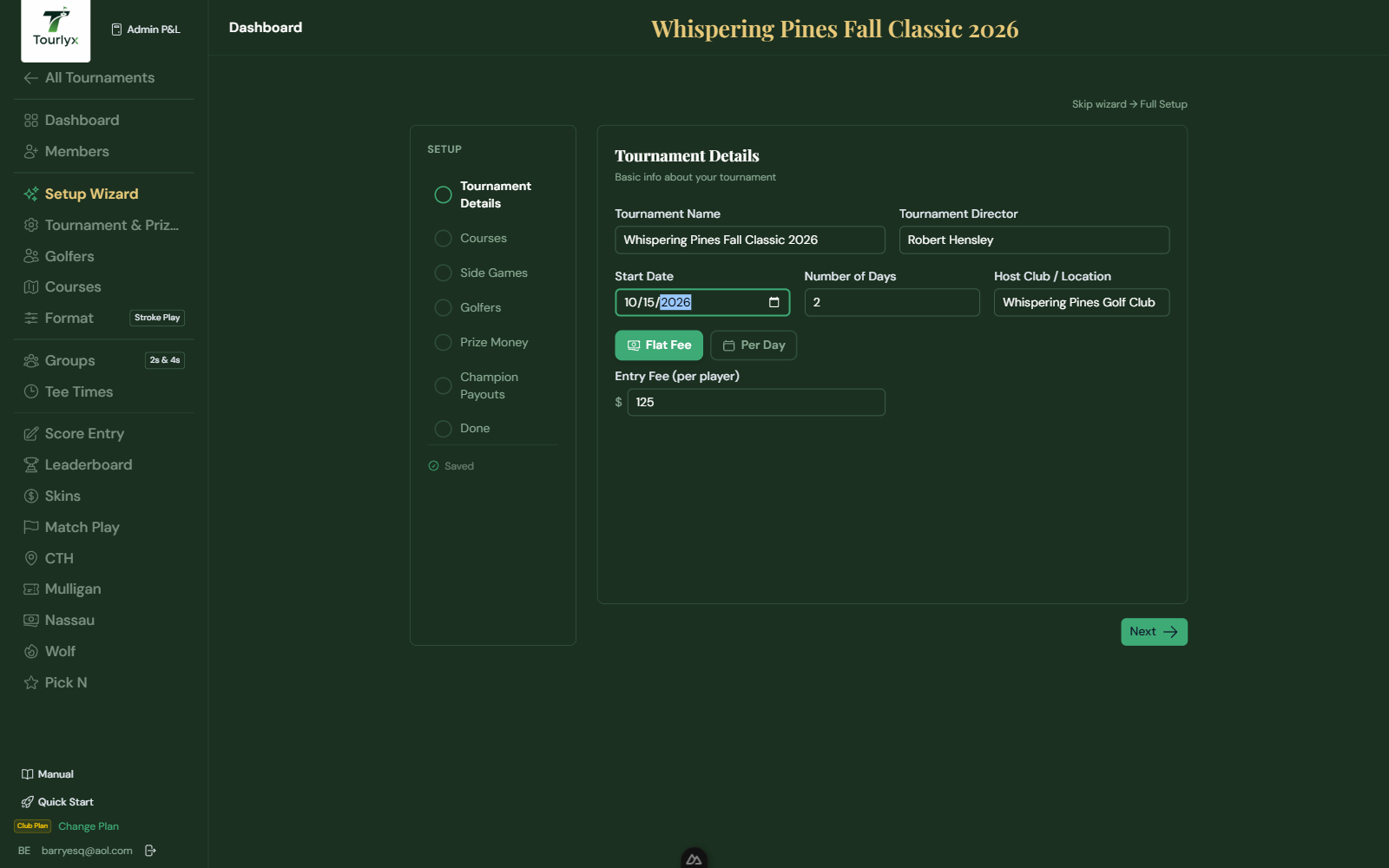
The Setup page is the central hub for all tournament configuration. It is organized into collapsible sections accessible from a sticky navigation bar. Work through each section from top to bottom before your tournament begins.
Accessing Setup
- Open your tournament from the dashboard.
- Click Setup in the tournament navigation bar.
- The first section — Tournament Details — is open by default.
Tournament Details Fields
| Field / Option | Description |
|---|---|
| Tournament Name | The official name displayed on all printed materials and the leaderboard. |
| Director | Name of the tournament director or organizing club (optional but recommended for print headers). |
| Location | City, state, or course name. Used for live weather forecasts in the Pairings view. |
| Start Date | The first day of the tournament. Multi-day events span consecutive days from this date. |
| Number of Days | 1 to 7. Controls how many day-tabs appear throughout the app. |
| Entry Fee | Dollar amount charged per golfer. Multiplied by roster size to show Total Entry Collected. |
| Mulligan Price | Cost per mulligan (default $5.00). Used in financial calculations when mulligans are enabled. |
| Allow Actual Scores | When OFF (default), hole scores are capped at double par — the USGA standard maximum. Enable to record all actual strokes. |
| Notes | Free-text field for internal reminders, local rules summaries, or sponsor acknowledgments. |
| Sponsor Seed | Auto-calculated from the Sponsors section — total sponsor contributions. |
| Total Funding | Entry Collected + Sponsor Seed + Mulligan Revenue. Used as the base pool for prize distributions. |
Tournament Logo
You can add a custom logo to your tournament — it appears inline next to the tournament name in the dashboard and throughout the app, and is printed at the top of the winner’s certificate.
Uploading a Logo
- From the dashboard, locate your tournament card.
- Click the placeholder image area on the tournament card (shown when no logo has been uploaded yet), or drag and drop an image file directly onto it.
- Select a PNG, JPG, or SVG image from your device. Recommended size is at least 200×200 px with a square or near-square aspect ratio for best display.
- The logo uploads immediately and appears inline next to the tournament name across the app.
Tip: A transparent-background PNG works best. Avoid logos with large white borders — they may look clipped on colored backgrounds. The logo is also printed at the top of the winner's certificate, so choose a clean, high-contrast image.
Note: Once a logo is set: **click** the logo image to open the tournament directly. To replace the logo, **press and hold** (long-press) the logo image — the upload dialog will appear so you can select a new image. The previous logo is replaced immediately.
Saving Your Changes
Each section has its own Save button. Changes are not automatically persisted — always click Save before navigating to another section.
Tip: Fill in Location accurately — Tourlyx uses it to pull a live weather forecast for each tournament day on the Pairings page, giving your golfers a heads-up before they tee off.