Leaderboard & Results
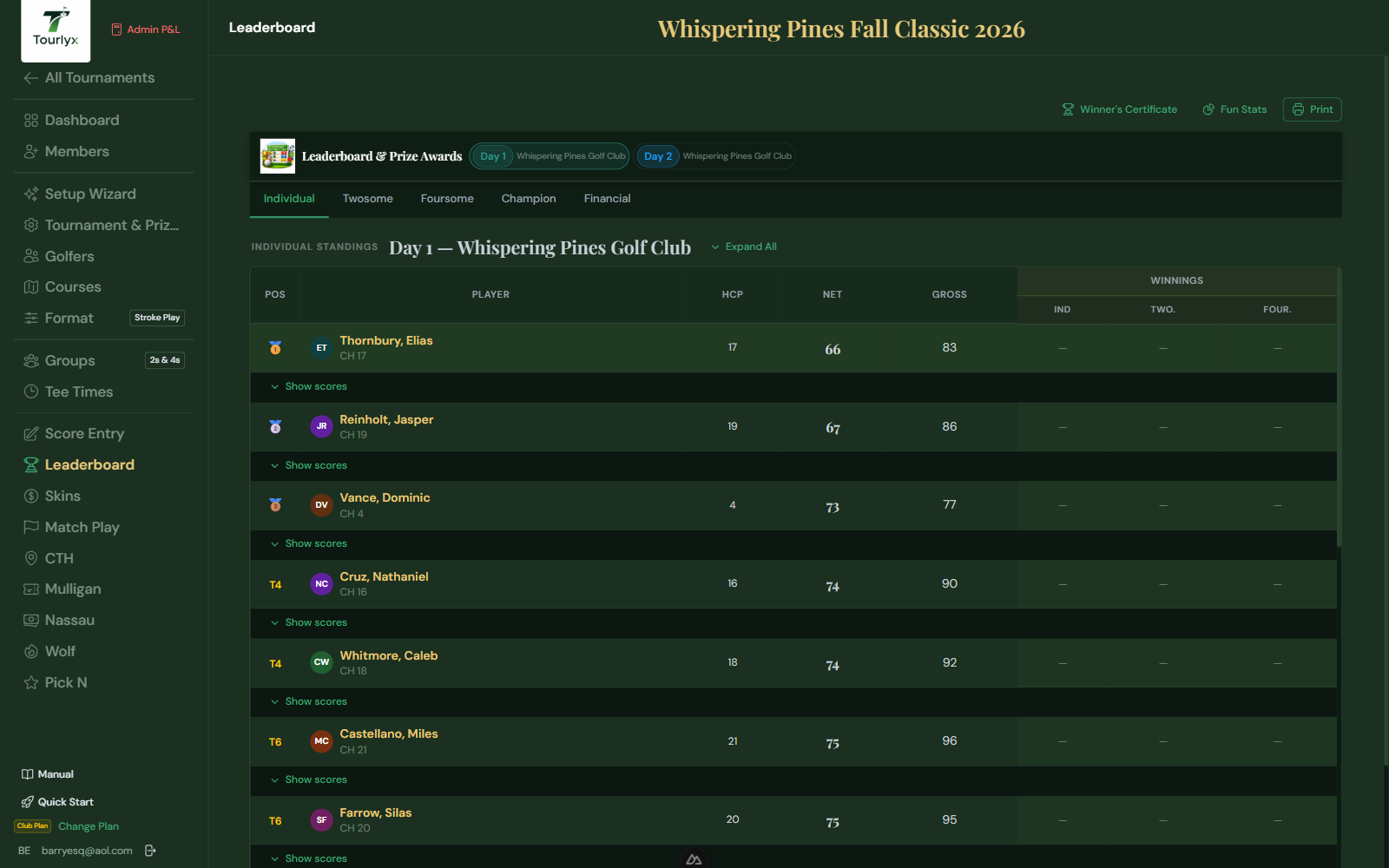
The Leaderboard is the results hub. It updates in real time as scores are entered and is organized into tabs based on which features are enabled for your tournament. The Financial Summary tab is shown by default when you open the Leaderboard.
Accessing the Leaderboard
Click Leaderboard in the tournament navigation.
Leaderboard Tabs
Financial Summary
Default tab. Detailed per-golfer financial ledger — all costs and prizes. See the Financial Summary section below for full details.
Overall
Individual standings by net (or gross) score with day-by-day breakdown and prize amounts per finishing position.
Groups
Twosome and Foursome group standings sorted by combined net score, showing group prize amounts.
Champion Standings
Cumulative multi-day champion rankings with payout amounts per place, funded by the Sponsor Seed. Click any golfer’s row to open their per-hole scorecard modal — showing gross and net scores hole-by-hole with a tab for each tournament day.
Skins
Hole-by-hole skins results: which golfer/team won each hole, carry-over skins, and prize value. A Financial Summary button opens a modal with a per-golfer skins payout table — showing total skins won and the dollar value for each player.
Match Play
Head-to-head match results: holes won per match, running differential, and final prize. A Financial Summary button opens a modal showing every golfer’s Won / Lost / Tied hole counts and net result per day, plus their cumulative Match Play net across all active days.
Nassau
Per-foursome Nassau results. Select a day or view overall standings. Each card shows Front 9 / Back 9 / Overall segment results (Win/Loss/Push). Expand for a full financial table showing each player’s Front 9, Back 9, Overall, and Net Result amounts. A Financial Summary button in the tab bar opens a compact per-player table of total Nassau net winnings or losses across all days — ideal for settlement. Only appears when Nassau is enabled.
Wolf
Per-foursome Wolf results. Select a day or view overall standings. Expand a card to see the hole-by-hole Wolf rotation, carryover pot (if enabled), and each player’s net per hole. A Financial Summary button in the tab bar opens a compact per-player Wolf net table — useful for quick cash settlement after the round. Only appears when Wolf is enabled.
Side Bets
Custom side bet records: informational log of custom contests (e.g., longest drive). Financial settlement for these is handled outside Tourlyx.
Pick N
Prediction standings: picker name, chosen golfers, combined score of picks, and final ranking.
Fun Stats Report
Click the Fun Stats button (chart-pie icon) at the top of the Leaderboard to open a separate, printable report full of light-hearted awards and statistical breakdowns — great for sharing with the field after the round or posting at the clubhouse. The report opens in a new tab and only shows sections for which the tournament has enough data.
Fun Awards
Up to eleven award cards are calculated automatically from entered scores:
| Field / Option | Description |
|---|---|
| 🔥 Hot Hand | Biggest net-score improvement from the golfer’s first complete day to their last. |
| 🎯 Steady Eddie | Lowest day-to-day variance in net score — the most consistent round-to-round performance. |
| 💪 Iron Man | Most holes with a recorded score across the whole tournament. |
| 😱 Hole of Shame | The single hole (day + hole number) with the highest average gross score relative to par. |
| 🏆 Best Round | The lowest single 18-hole net score posted by anyone in the tournament. |
| 🎰 Mulligan King | Golfer who purchased the most mulligans. |
| 🔚 Back 9 Closer | Best average net score per hole on holes 10–18. |
| 🐢 Slow Starter | Biggest improvement from front-9 average net to back-9 average net. |
| ⚙️ Bogey Machine | Most net bogeys (one over par) recorded. |
| 👑 Par King/Queen | Most net pars recorded — the steadiest scorer hole-to-hole. |
| 🦅 Eagle Eye | Most net eagles (two or more under par) recorded. |
Additional Report Sections
- Day Stats & Scoring Breakdown — field-wide scoring averages and distribution.
- Pick Pool, Skins, Match Play, CTH Winners — condensed results for each enabled side feature.
- Hole Difficulty Rankings — every hole played, ranked hardest to easiest by average score over par.
- Head-to-Head Record — win/loss/tie and holes-won tally per golfer, shown only when Match Play is enabled.
- Day-Over-Day Trend — each golfer’s net score by day with a trend arrow (📈 improving, 📉 declining, ➡️ steady).
- Scoring by Tee — average gross and net by tee color, shown only when golfers play from more than one tee.
Financial Summary
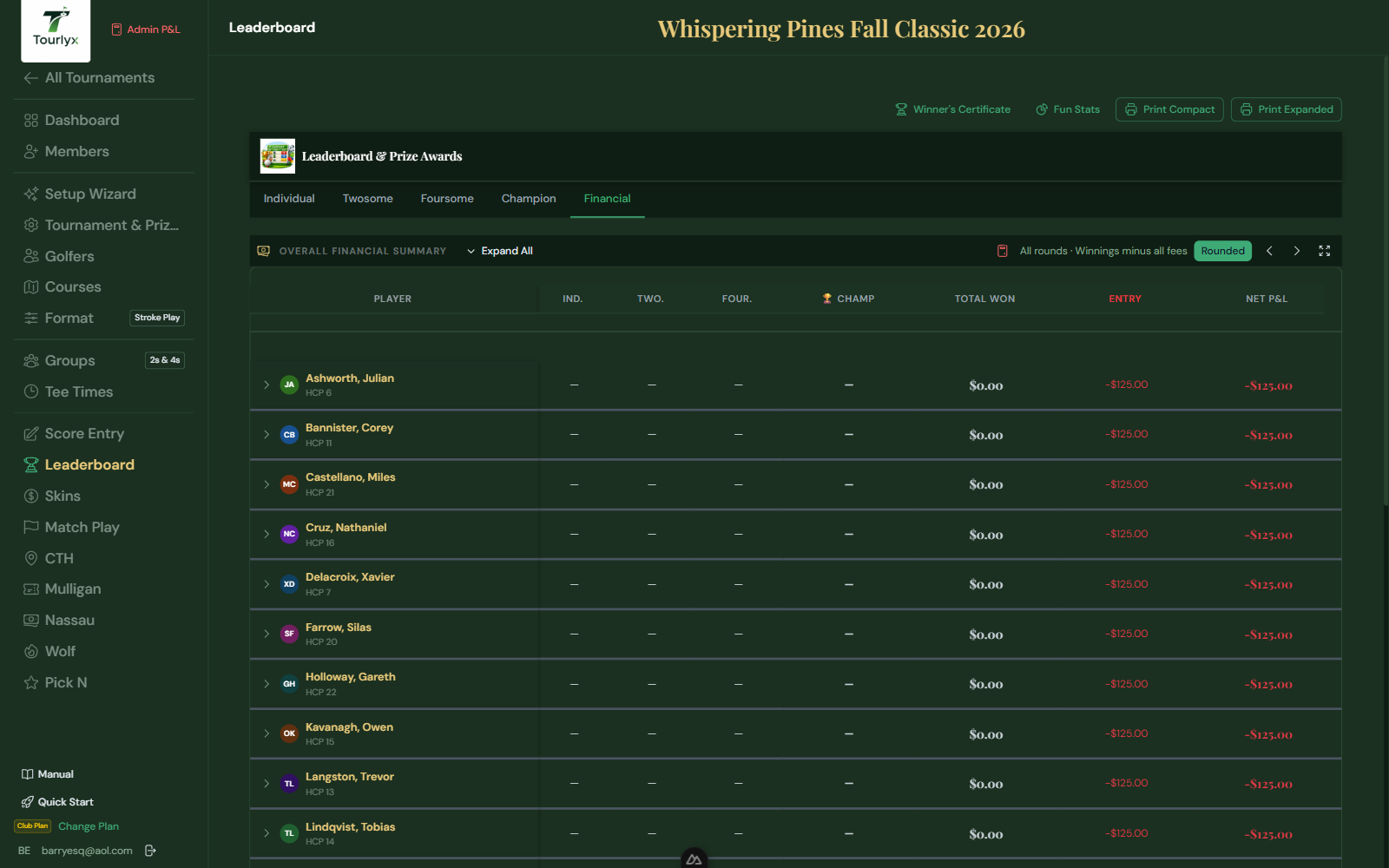
The Financial Summary gives you a complete money-in / money-out breakdown for every golfer. It is the definitive settlement document — use it to collect fees, pay prizes, and verify that the books balance.
Financial Summary Columns
| Field / Option | Description |
|---|---|
| Entry Fee | The base entry fee charged to this golfer. |
| Mulligans | Total mulligan fees charged (quantity × mulligan price). Only shown when Mulligans are enabled. |
| CTH Fee | Per-golfer CTH entry fee charged. Only shown when CTH is enabled and Mulligans are disabled. The column total in the footer shows the full CTH pot collected across all golfers. |
| Side Wager | Side wager entry fee charged to eligible golfers. |
| Pick N | Pick N entry fee charged. |
| Skins | Skins entry fee charged. |
| Match Play | Match Play entry fee charged. |
| Day Prizes | Sum of individual, twosome, and foursome day prizes won. |
| CTH Prize | CTH prize won. The footer of this column shows the total CTH prizes paid out across all golfers. |
| Champion Prize | Champion payout won (shown here only if Include in Summary is ON). |
| Side Wager Prize | Side wager contest winnings. |
| Pick N Prize | Pick N contest winnings. |
| Skins Prize | Skins pot winnings. |
| Match Play Prize | Match Play pot winnings. |
| Nassau Net | Net winnings or losses from Nassau across all completed Nassau days. Positive = won more bets than lost. Only shown when Nassau is enabled. |
| Wolf Net | Net winnings or losses from Wolf across all completed Wolf days. Positive = won more holes than lost. Only shown when Wolf is enabled. |
| Champion Pool | The champion prize pot funded by sponsors. Displayed in the totals/reconciliation row. |
| Net P&L | Total winnings minus total costs. Positive = owed to golfer. Negative = golfer owes. |
Financial Summary Buttons (Skins / Match Play / Nassau / Wolf)
When Skins, Match Play, Nassau, or Wolf are enabled, a Financial Summary button appears in the tab bar of the respective Leaderboard tab. Clicking it opens a compact settlement modal showing each player’s net result — fees paid versus prizes or winnings received — making it easy to settle side bets in cash at the end of the round without navigating away from the leaderboard.
Per-Day Breakdown
Expand any golfer’s row to see a day-by-day detail of how each amount was calculated — which day’s individual prize they won, which day’s skins, etc. A Print button inside the expanded row lets you print just that golfer’s detailed financial breakdown as a receipt.
Ghost Player Rows
When a golfer appears as a ghost fill-in on one or more days, their Financial Summary row rolls up all ghost-day entry fees and any prizes won as a ghost into the golfer’s master row. Ghost player names appear in gold in the Financial Summary, consistent with every other view in the app.
Printing the Financial Summary
Click Print at the top of the Financial Summary tab to generate a full invoice-style sheet with color-coded income (green) and expense (red) columns. You can also print an individual golfer’s breakdown by expanding their row and clicking the Print button within it.
Admin P&L Modal — Calculation Formulas & Prize Balance Check
Tournament owners can open an Admin Reconcile modal from the Financial Summary page (click the Admin button in the page header). The modal provides a line-by-line audit of every money-in and money-out bucket.
A shortcut also lives at the top of the sidebar — an Admin P&L button with a calculator icon, visible to tournament owners whenever a tournament is open. The icon turns green when the books balance (within $1.00) and red when they don’t, so you can spot a reconciliation problem from any page without opening the modal first.
Per-Row Calculation Formulas
Each row in the Admin P&L modal now displays a compact formula string directly beneath the row label. The formula shows exactly how that bucket’s total was calculated — for example:
- Entry Fees: N players × $fee = $total · paid: Σ ind + twosome + foursome prize slots
- Mulligans / CTH: N mulligans × $price = $total · paid: CTH pot to winner
- Skins, Match Play, Nassau, Wolf: N eligible × $fee = $total · paid: pot distributed to winners
The formulas are read-only reference text — they do not control the actual calculations, but they make it easy to spot a misconfiguration (e.g., a prize slot count that doesn’t match the number of players) without manually cross-referencing the Setup page.
Prize Balance Check
The Admin modal’s setup checklist includes a dedicated Prize amounts cover entry fees check. This item turns green when the total prize money configured across all individual, twosome, and foursome slots equals or exceeds the total entry fees collected. If prizes fall short, the check appears amber with a link to the Prize Money section of Setup so you can correct the shortfall immediately.
Tie-Breaking and Countback
When golfers or teams tie for a finishing place, Tourlyx settles the standing with a USGA scorecard countback rather than leaving the tie unbroken.
- How the countback runs. Tied cards are compared on the back 9, then the back 6, then the back 3, then the last hole, then hole by hole, until one card is lower. Genuinely identical cards fall to a reproducible seeded draw. Net flights use net scores; team flights use the team’s best-ball-net card per hole. Multi-day champion ties walk back through earlier rounds if the final round is still level.
- Cash still splits. A countback only decides who holds an indivisible physical prize (a package, a trophy, an assigned item). The prize money for the tied places is still pooled and split evenly among the tied golfers.
- Losers are not shown holding the prize. On the Results and Leaderboard flight tables, a golfer who loses the countback no longer shows the physical item in the Prize column. The item appears struck through with “lost to <winner> · cash still splits”; a tie whose scorecards are not yet complete shows “countback pending” until every hole is entered.
- Tie chips. A small chip next to a tied row shows the outcome — “Won tie (countback)” or “Won tie (draw)” for the winner, “Lost tie” for the others.